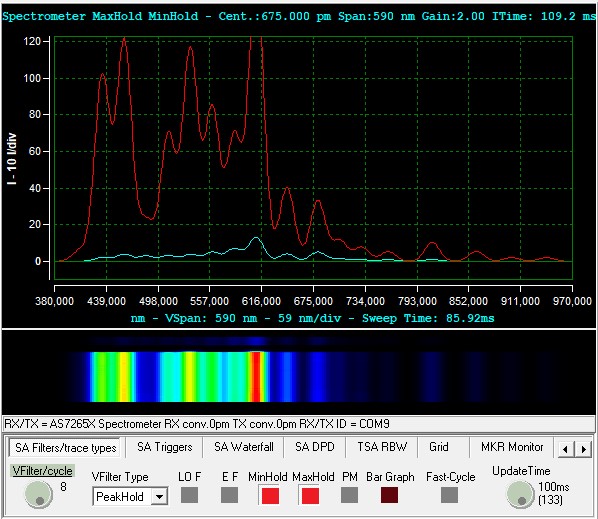
The highlights of this release are:
- AM, FM, and SSB radio with deviation and modulation amplitude meter for FM and AM.
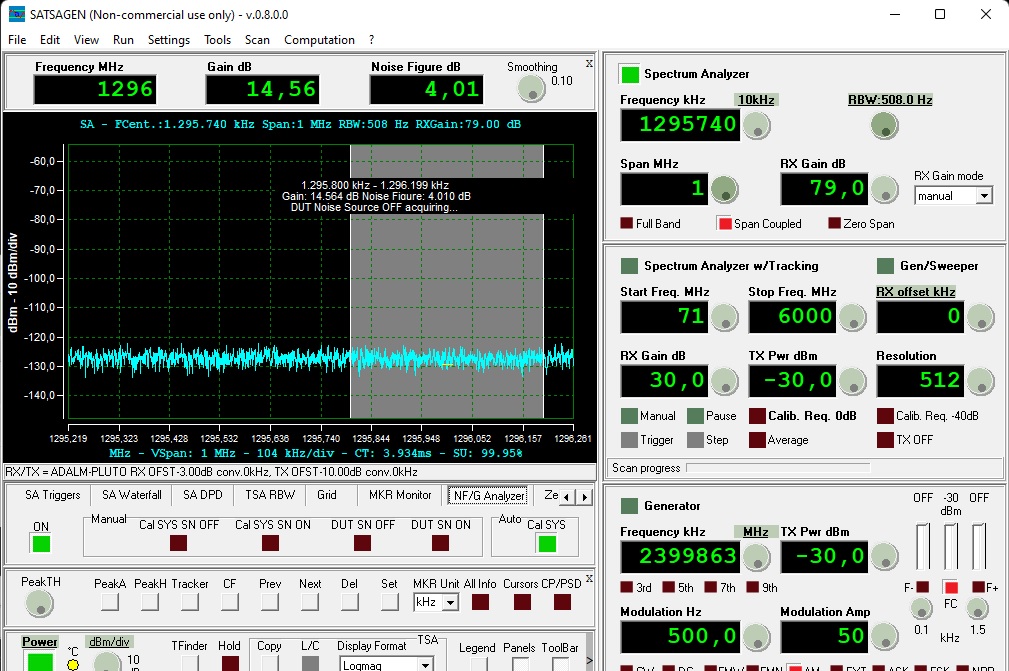
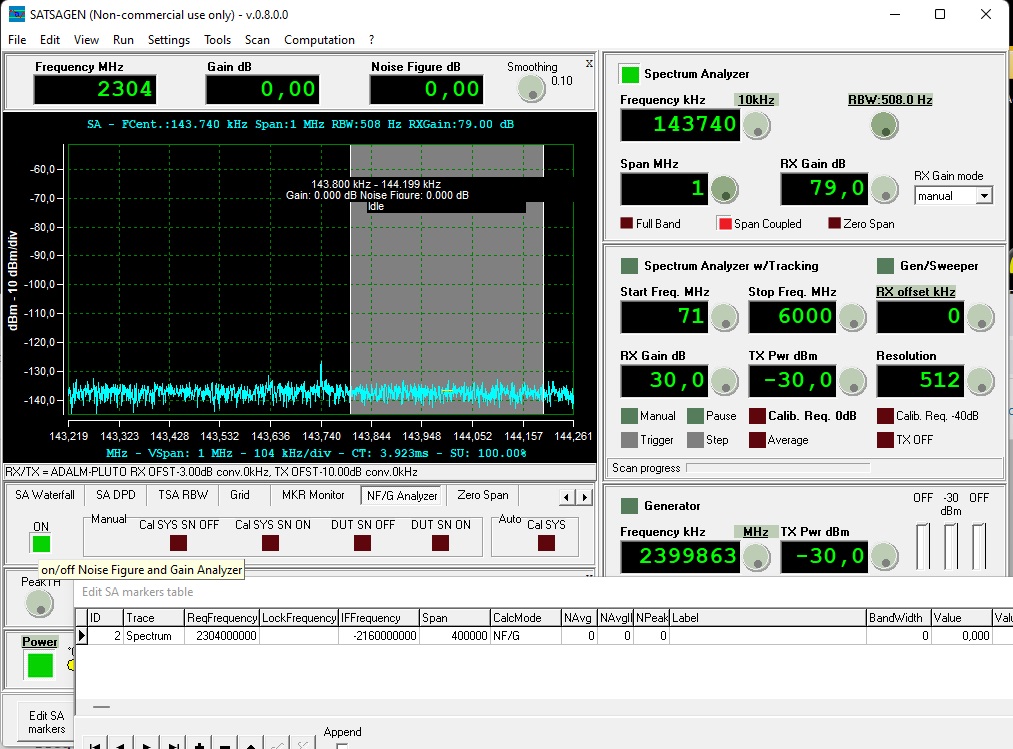
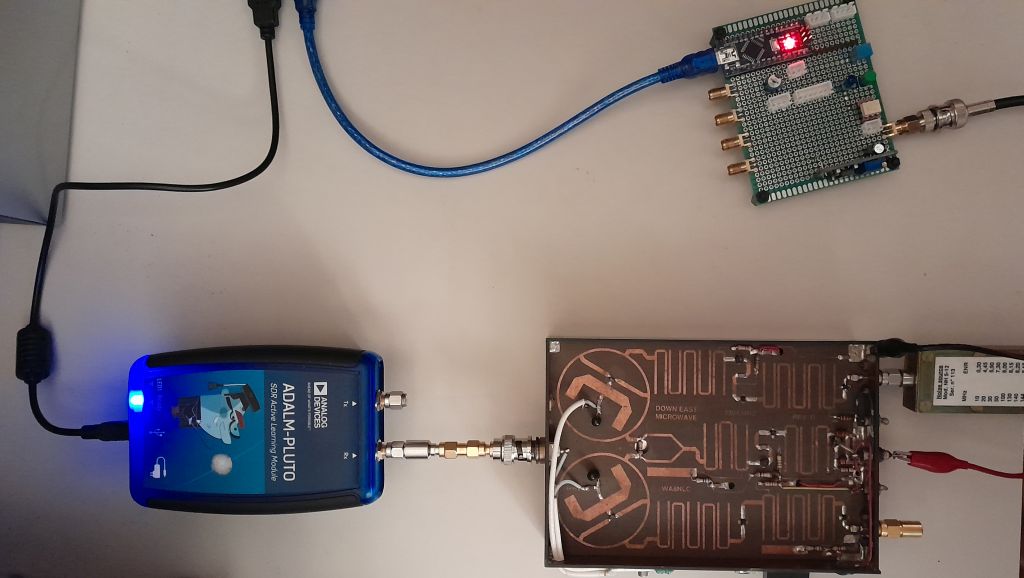
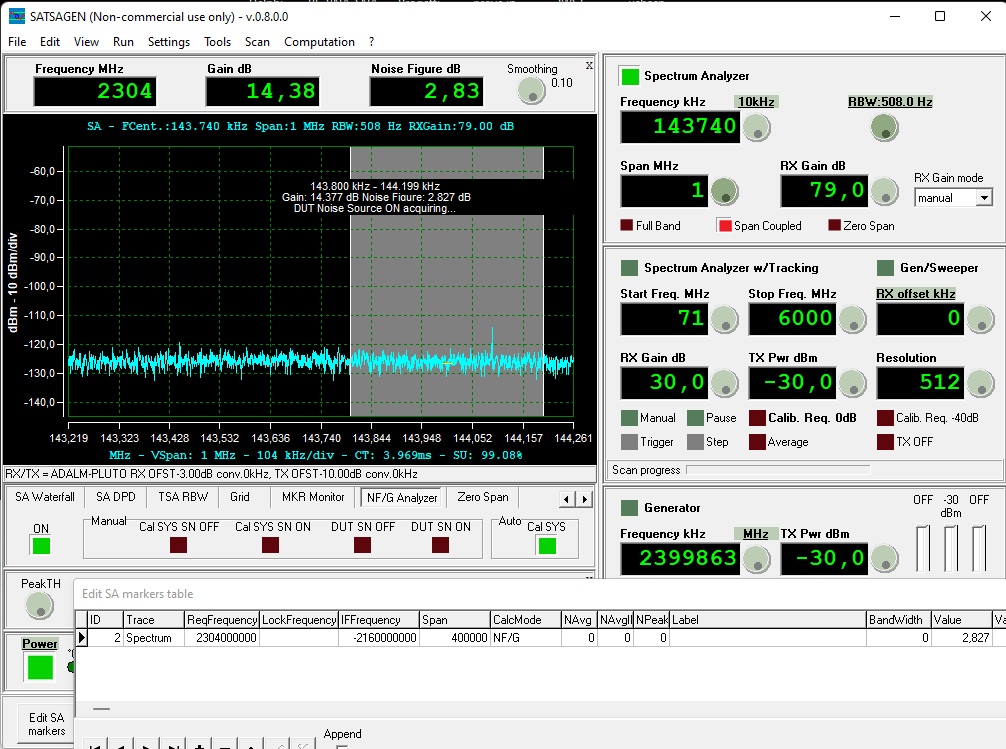
- Major improvements and additions of new features for the Noise/Gain Analyzer part
- Average/Time and Cumulative Folding
- Improvements and additions
Radio
The preliminary conditions for using the Radio are:
- In Settings, Extra tab, if not already active, enable the Multithreading item
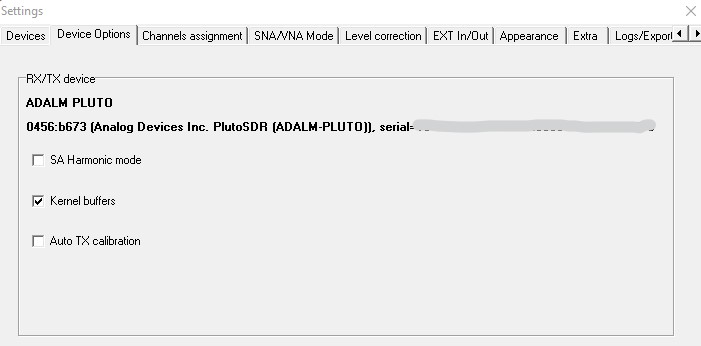
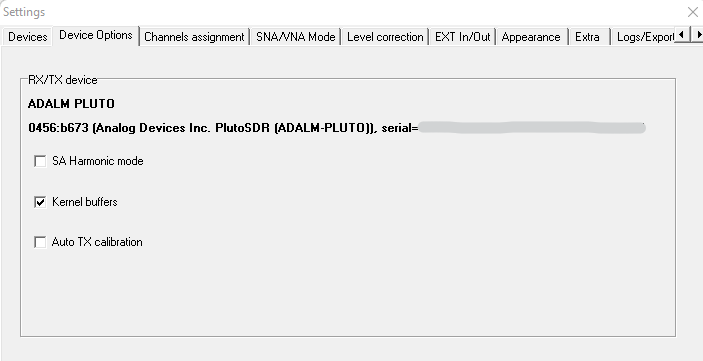
- If you use the Pluto device, check the Kernel buffers item in Settings, Device Options tab
- The LO F and EF filters in the SA Filters/trace types tab must be turned off
- The Span must be less than or equal to the maximum instantaneous bandwidth of the device. For example, with Pluto, the Span must be a maximum of 2 MHz (4 MSPS)
- The resolution bandwidth, in the FFT size entry, must be within a range suitable for the SDR device used. When the Radio is turned on, Satsagen sets the FFT size, if too low, to 4K as a starting point suitable for most devices.
If one or more of the above conditions are not met, the Radio may remain in standby or operate with unsatisfactory listening reproduction.
I decline all responsibility for any damage to hearing resulting from improper use of the audio functions of Satsagen, especially when using headphones.
Before turning on the radio, selecting one of the demodulation modes provided, always set the AF Gain and Volume controls to the lowest possible level, then gradually raise them until the desired reproduction amplitude is obtained.
Bumps, static and other annoying sounds can be reproduced, although it has provided for automatic fading in some occasions, such as when switching from one demodulation to another. These loud and dangerous sounds are reproduced especially using demodulations dependent on the amplitude of the input signal, which is not predictable, such as AM and SSB.
To turn on the Radio:
- Start the Spectrum Analyzer at the desired center frequency and sufficient RX Gain
- Activate the Radio tab and choose the desired demodulation from the Mode list:
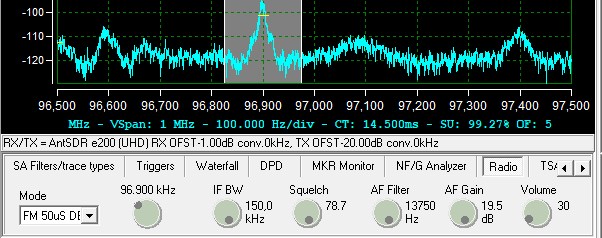
Once you have chosen the demodulation type, the Radio starts playing on the PC’s default audio.
A tuning cursor, as wide as the selected IF BW, is shown on the display. To move the tuning, click on the display at the position of the desired frequency or by acting on the tuning knob located next to the list of demodulation modes. If the station you want to listen to is outside the displayed span, you must necessarily act on the center frequency of the spectrum analyzer using the usual controls, including those offered by the gesture on the touch screen display.
Double-clicking on the tuning cursor will zoom in to make it easier to center the frequency of the signal you want to demodulate. A subsequent double click in the tuning area will reset the zoom factor to the previous values.
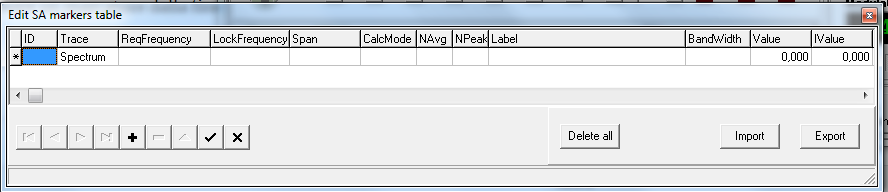
The tuning cursor is a marker visible in the Edit SA markers table as CalcMode DEMOD. When the radio is active, the use of the other markers is not allowed, while it is possible to use the cursors for any measurements.
To turn off the Radio, choose No demod from the Mode list .
The expected demodulations are:
- AM. The IF bandwidth starts at 12 kHz by default and can be adjusted in the range from 2 to 250 kHz. The AF Gain can reach 45 dB. The tuning can be controlled in 100 Hz steps.
- N-FM. The IF bandwidth starts at 12 kHz by default and can be adjusted in the range from 2 to 16 kHz. The AF Gain can be set to a maximum of 30 dB. The narrow FM demodulation uses an audio bandpass filter from 200 Hz to 4200 Hz and a 530 uS de-emphasis filter. The use of the squelch is possible. The tuning can be controlled in 100 Hz steps.
- FM. The IF bandwidth starts from 150 kHz by default and can be adjusted in the range from 2 to 250 kHz. The AF Gain can be set to a maximum of 30 dB. This demodulation does not use any filter other than the AF Filter set by the user. The use of the squelch is possible. The tuning can be controlled in steps of approximately 1 kHz.
- FM 50uS DE and FM 75uS DE. The IF bandwidth starts at 150 kHz by default and can be adjusted in the range from 2 to 250 kHz. The AF Gain can be set to a maximum of 30 dB. These demodulations are in FM mono. The 19 kHz carrier of stereo broadcasts is partially suppressed by the de-emphasis filter and the AF Filter setting. The de-emphasis filter is 50 uS and 75 uS, respectively. The use of the squelch is possible. The tuning can be controlled in steps of approximately 1 kHz.
- LSB and USB. The IF bandwidth starts at 2.8 kHz by default and can be adjusted in the range from 2 to 8 kHz. The AF Gain can reach 45 dB. The tuning can be controlled in 1 Hz steps, with the granularity expected by the SDR device in use.
The radio is not compatible with the following Satsagen features: Full Band, Zero Span, NF/G Analyzer, and the LO F and EF filters. If you attempt to use any of the above features at the same time as the radio, the radio will be put into standby, or the features will not activate.
Deviation and modulation amplitude meter
FM deviation and AM modulation measurements can be made with the aid of the Radio.
FM deviation measurement
- Turn the Radio on to one of the FM demodulation modes
- The carrier to be measured should preferably be modulated with about 1 kHz and have sufficient power. As a guide, using an ADALM-PLUTO, a carrier of at least -80 dBm is needed. With an RX Gain setting of 40 dB, the measurement tolerance is around 5%.
- Set a suitable IF BW with the deviation measurement to be performed
- Center the carrier or tune to the carrier as much as possible
- Activate the Radio Modulation Metering item from the View menu
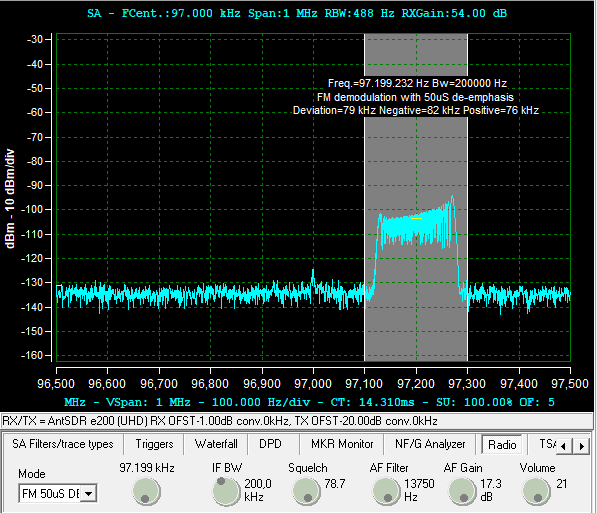
- The third line of text on the tuning slider will display real-time deviation and negative/positive deviation measurements from the center frequency of the tuned channel, in kHz for wide FM and in Hz for narrow FM:
To improve the measurement accuracy, perform calibration:
- Turn the Radio on to one of the FM demodulation modes
- Tune the carrier, in this case, it must be unmodulated, CW
- From the Run menu, FM modulation metering calibration item, choose Run Calibration
- After about a second, if the calibration was successful, measured values around zero should be displayed.
- Continue with the measurement by now modulating the carrier with approximately one kHz
AM modulation measurement
- Turn the Radio ON by selecting AM demodulation
- The carrier to be measured should preferably be modulated with approximately 1 kHz
- Activate the Radio Modulation Metering item from the View menu
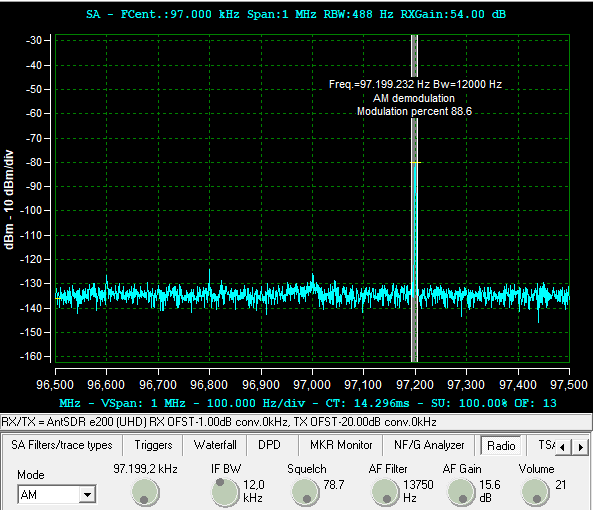
- The third line of text on the tuning slider will display a real-time measurement of the amplitude in percentage of modulation:
Even in the case of AM, it is possible to perform an a priori calibration to improve the accuracy of the modulation measurement:
- Turn the Radio on to one of the AM demodulation modes
- Tune to the desired frequency without the carrier present, so that Satsagen only acquires the noise floor level
- From the Run menu, AM modulation metering calibration item, select Run Calibration
- After about a second, if the calibration was successful, you should see fluctuating values below 99%.
- Continue with the measurement by activating the AM modulated carrier at approximately one kHz
Noise/Gain Analyzer
The Noise/Gain Analyzer functionality has been enhanced to improve measurement accuracy and reduce repetitive calibration tasks.
Adaptive mode
In Settings, Computations tab, enable the new adaptive mode using the Adaptive on three gain settings item :
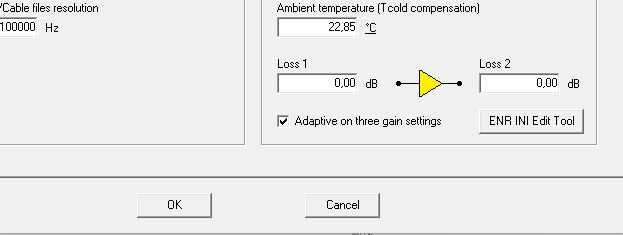
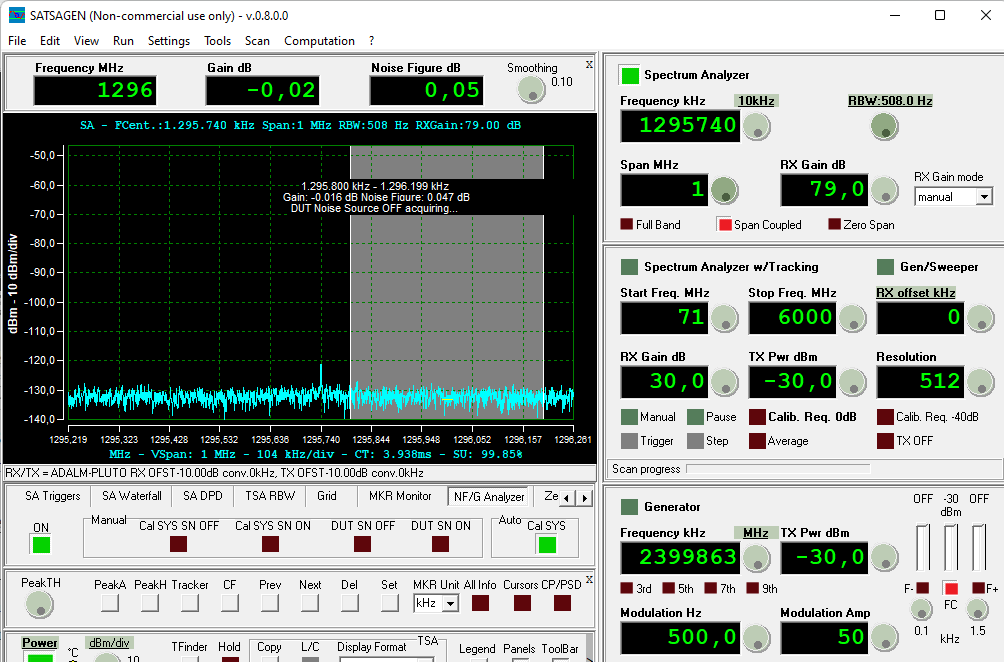
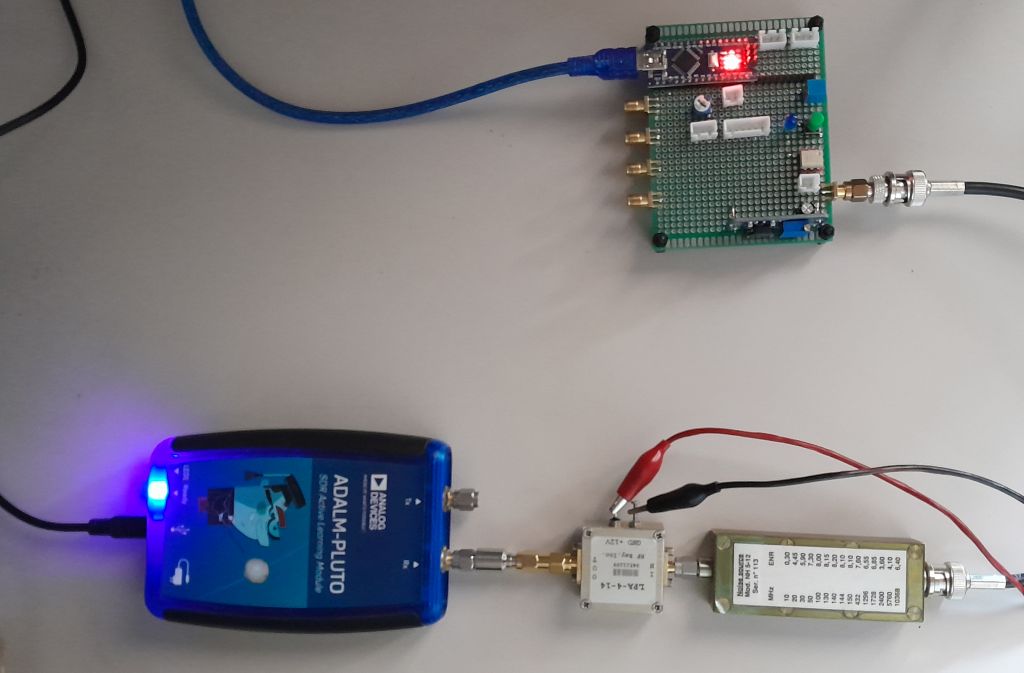
The adaptive mode, during the measurement phase, sets the most suitable reception gain for the characteristics of the device under test, thus avoiding false readings following overload of the input stages and ADC of the SDR device used.
Once the adaptive mode has been configured, you can proceed with the calibration and measurement with the same procedure as always, in essence, only the time required for calibration will change, but let’s see in detail what the program does in this new mode:
The calibration phase takes longer to complete than the classic non-adaptive mode, as the program must analyze the behavior of the noise source and SDR receiver system at different Gain levels and then use this information in the measurement phase.
Calibration in adaptive mode consists of the following macro phases:
- Determine the usable RX Gain range by starting the acquisition with the maximum available RX Gain and progressively reducing it until finding the minimum level where the ON/OFF variations of the noise source can still be used.
- Divides the above range into three gain levels
- Perform three calibrations using the three identified gain levels
- Calculate the maximum measurable gain of the devices under test and map the three calibrations to three DUT gain ranges
During measurement, the program determines which of the three RX Gain levels and associated calibration to use based on the approximate gain of the device under test.
If, during calibration, the program determines that there are no conditions to create three RX Gain ranges, because the deviation between maximum gain and the minimum usable gain is too small, then the adaptive mode is automatically disabled, and the system proceeds classically.
Harmonic compensation
Some SDR devices, such as the Pluto, can introduce a reading error during calibration due to the emphasized harmonic behavior of the receiving mixers and the fact that there is no pre-selector filter at the input. These conditions cause the noise level of the source head to be received not only at the fundamental measurement frequency but also at the harmonic frequencies, more markedly at the third and fifth harmonics. This error is reflected in the measurement results, especially in an underestimation of the Gain of the device under test, in particular, this occurs when measuring narrow-band DUTs.
From this version, Satsagen provides the application of a compensation that significantly reduces the error on both the Gain and the Noise figure measured. To activate this compensation mechanism, simply fill in the Bandwidth field of the marker used for the measurements with the approximate value of the bandwidth of the device under test:

The compensation will be calculated by the program based on the characteristics of the SDR used and how it behaves at the harmonic frequencies, combined with the ENR information of the Noise Source table used.
The compensation will be applied only during the final display of the device measurement, that is, when the latter is connected to the system, so it will not be displayed at the end of the calibration, where the Gain and Noise Figure displays will always oscillate around zero.
If you want to know the compensation level already during the calibration phase, activate the Show the mixer’s harmonic compensation at the calibration level item from the Computations->NF/G Analyzer->Session settings menu.
Using TX SDR as Noise Source!
I thought it could be interesting, on an experimental basis, to use the TX part of the SDR as a Noise Source!
Satsagen was already equipped in the generator part with an NPR modulation that allows the measurement of the intermodulation of adjacent channels. In essence, it is a pseudo-random noise generator including three notch filters. The NF/G Analyzer part can be configured to use this generator as a Noise Source for Noise Figure and Gain measurements.
It should be noted that this possibility produces reliable Noise Figure results only if the system is characterized by professional and calibrated instruments, to create a customized ENR table to be inserted into the program. Furthermore, compared to a Noise Source head, the use of an SDR device as a noise source has the following disadvantages:
- Once the SDR with the attenuator installed has been characterized using calibrated instrumentation, the device must be dedicated only for NF/G measurements; for example, even the simple operation of unscrewing the attenuator and then replacing it can invalidate the characterization just performed.
- The frequency and power instability of an SDR vs. thermal variations is greater than that of a traditional cartridge and could introduce unacceptable Noise Figure measurement errors.
- The usable frequency range is usually lower than a traditional Noise Source cartridge. For example, with a Pluto, you can generate noise from about 70 MHz to 6 GHz.
- Last but not least, an SDR used as a noise source can only be used by Satsagen, while a traditional head can be used with most hardware measurement systems and with Satsagen.
For the above reasons, using a Noise Source head is always the best choice. Since purchasing a branded head is becoming more and more expensive over time, it would be worth trying to build one yourself or choosing emerging products such as those proposed by Mauro IZ1OTT, who offers a portfolio of RF microwave components with an excellent quality/price ratio. Information about this can be found on Mauro’s website: https://www.mauroottaviani.com.
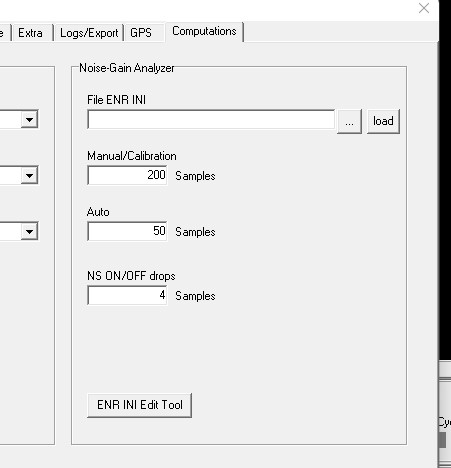
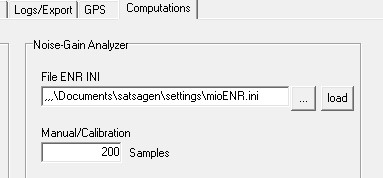
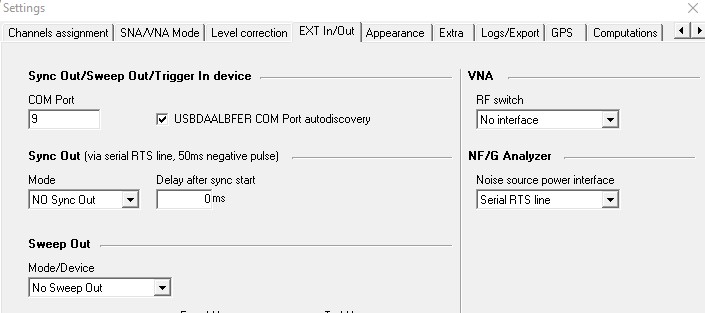
Enabling the TX SDR as a noise source is simple. In Settings, Ext In/Out tab, choose the Generator as a Noise Source item from the Noise source power interface list, then in the Computations tab, enter the name of the file containing the ENR characterization table of the TX SDR. I will explain how to characterize an SDR as a Noise Source in the next chapter. For purely indicative purposes, I have inserted some examples of ENR tables of the SDR devices in the Satsagen setup, they can be found in Documents\satsagen\settings\ENRTables. The names of the example files are composed in this way: an ENR prefix followed by the name of the SDR device and optionally the sampling frequency used in the characterization. The file name always ends with a suffix indicating the value of the TX attenuator used. For example, the name of the table for the ADALM-PLUTO at 8 MSPS with a 20 dB attenuator is: ENRADALMPLUTO8MSPS-20. If the sampling rate is not specified in the name, the table is suitable for the worst case condition of using the SDR TX as Noise Source, where the device is used simultaneously also as RX and the baseband is shared, so the sampling rate is fixed by the receiving side and may not be the optimal one, as in the case of ADALM-PLUTO at 8 MSPS.
The SDR devices considered by Satsagen as Noise Source are:
- ADALM-PLUTO and accessories with 20 dB attenuator on TX connector
- USRP with 30dB TX attenuator
- AntSDR E200 with 30dB TX Attenuator
- HackRF One with 50 dB TX attenuator
Characterization of an SDR TX as a Noise Source
For ENR characterization of a device, a reliable and calibrated ENR measuring instrument is required.
Below is the procedure to characterize an ADALM-PLUTO as a Noise Source:
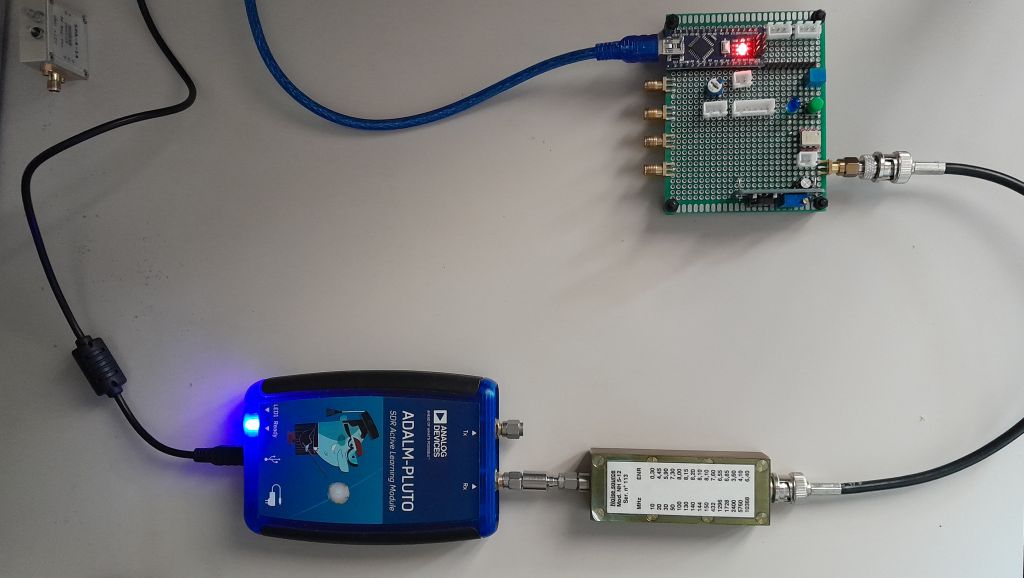
The setup must match the final measurement setup, so for example if you will use the NF/G Analyzer with a single ADALM-PLUTO device with the roles of both receiver and Noise Source (the worst condition in terms of measurement reliability), the characterization setup will be a single ADALM-PLUTO with a -20 dB attenuator on the TX connector. If you have two ADALM-PLUTOs available, one to dedicate to reception and another as a Noise Source, then the characterization setup could be composed of two ADALM-PLUTOs, with the device dedicated to the Noise Source equipped with a -20 dB attenuator on the TX connector.
- Connect the TX (obviously the attenuator output) to the ENR measuring instrument
- In Settings, Ext In/Out tab, choose the Generator as a Noise Source item from the Noise source power interface list
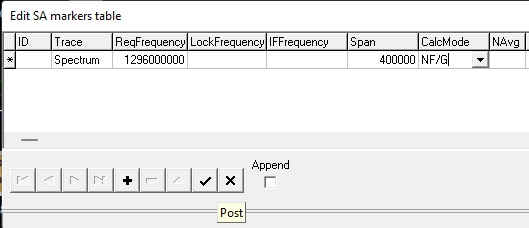
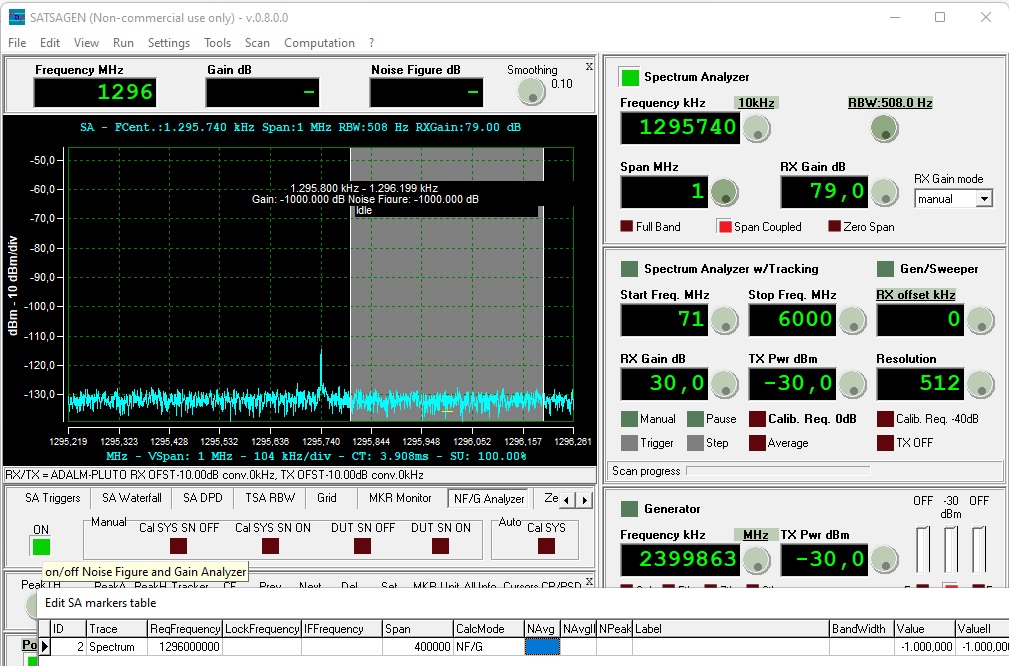
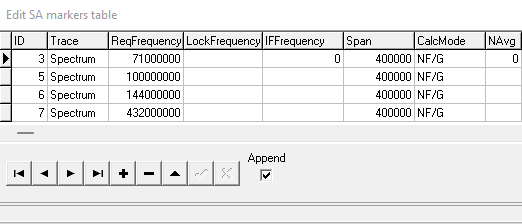
- Create as many markers of type CalcMode NF/G with a span of 400000 at the frequencies you want to characterize in increasing order. For example, 71000000, 100000000, 144000000, 432000000, and so on.
- Select the first marker with the lowest frequency
- Start the NF/G Analyzer by clicking the ON button in the NF/G Analyzer tab.
- Configure the ENR measurement tool with a bandwidth corresponding to half of the value displayed in the Sampling kHz box of the Satsagen generator.
- Click the small TX On button on the generator and note the frequency and ENR value read on the meter
- Select the next marker and click the TX On button again, and note the frequency and ENR value displayed by the meter. Repeat this step for all created markers.
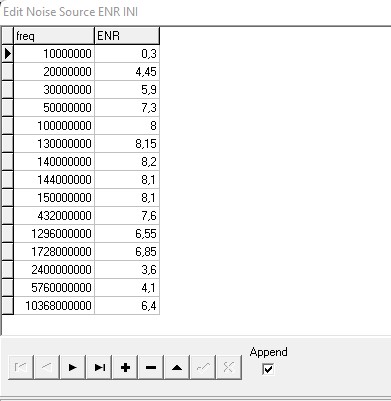
- Open in Settings, tab Computations, the ENR file writing tool via the ENR INI Edit Tool button, and copy the frequencies and ENRs noted in the table. Then save via the Export button to an ENRADALMPLUTO-20.ini file
Saving calibration data
The NF/G Analyzer system from this version will automatically save the calibration data. The saved data can be reused to perform new measurements, saving the time needed for calibration. For example, it is now possible to perform a calibration and measurement of a DUT, close the application, reopen it, and perform the measurement on a new DUT with the same frequency and bandwidth characteristics, skipping the calibration phase. It is also possible to calibrate the system on multiple frequencies and bandwidths and subsequently perform the measurement on multiple DUTs, without having to recalibrate the system each time.
Using this new feature is very simple. If there is calibration data in memory, usable for the characteristics of the currently selected marker, then a small LED next to the calibration button will turn yellow:
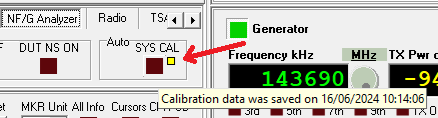
At this point, you can decide whether to use the data in memory or perform a new calibration and measurement cycle. To use the calibration data in memory and immediately start measuring the DUT, click on the SYS CAL button while simultaneously holding down the CTRL key on the keyboard. The SYS CAL button will immediately turn green to indicate the correct recovery of the calibration data and the start of the measurement phase. Instead, to ignore the presence of saved calibration data and perform a new calibration cycle, thus overwriting the data in memory, simply click on the SYS CAL button as usual.
For the system to propose calibration data as reusable, some configuration parameters of the new measurement must be identical to those saved, the main ones being:
- Same type of measurement: Manual, Auto, or Auto Adaptive
- Same Frequency
- Same IF Frequency if specified
- Same Bandwidth (Span)
If one or more of the above main parameters do not match, then the small LED dedicated to signaling the presence of reusable calibration data will remain off.
To view the list of calibration data stored in memory, select the List the saved calibration data to the trace log item from the Computation->NF/G Analyzer->Calibration data menu :

If there are reusable calibration data that match the above main parameters, but one or more secondary parameters that could affect the accuracy of the measurements differ, then the small LED will turn red, and it is possible to use the information displayed in the balloon tip to trace the non-corresponding parameters:

In this example, the current configuration parameter that does not match the saved one is #24. To find a description of the parameter starting from this number, choose the item Dump the selected calibration data to the trace log from the Computation->NF/G Analyzer->Calibration data menu :
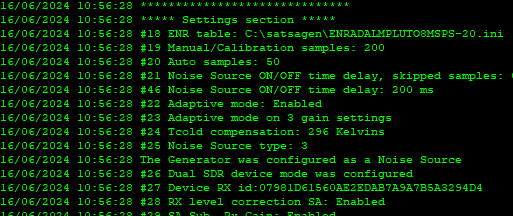
In the example, the parameter that differs is related to the temperature of the working environment, which is 296 Kelvins in the saved data, while, for example, it was changed by the user in configuration to 290 Kelvins.
ENR Meter
The Satsagen NF/G Analyzer can be used to measure the ENR of a noise source. It should be noted that to perform this measurement, a perfectly characterized Noise Source head needs to be used as a sample. Furthermore, this meter cannot replace professional and calibrated equipment, as the errors introduced by the SDR system can accumulate and lead to unsatisfactory results. In this regard, it is recommended for these measurements to use an SDR that does not have mixers with emphasized harmonic behavior, such as an RTL-SDR, with which it is possible to measure ENR with good results up to about 1.4 GHz.
- Set up the system as if you were going to make traditional Noise Figure and Gain measurements. If necessary, see this post where I illustrate the basics for using the NF/G Analyzer.
- Disable the Adaptive on three gain settings item from Settings, Computations tab, as this mode is not compatible with ENR measurement
- Activate the ENR measurement item from the Computation->NF/G Analyzer->Modes menu
- Create as many markers of type CalcMode NF/G with a span of 400000 at the frequencies you want to characterize in increasing order. For example, 71000000, 100000000, 144000000, 432000000, and so on.
- Connect the Noise Source sample head
- Select the first created marker
- Start the NF/G Analyzer by clicking the ON button in the NF/G Analyzer tab.
- Click on SYS CAL and wait for the acquisition to finish when the button turns green
- Select the next marker and repeat the procedure by clicking on SYS CAL, then continue for all the remaining markers. In this way, the system will store the ENR data of the sample head
- Connect the Noise Source head to be characterized
- Select the first marker
- While holding down the CTRL key, click on the SYS CAL button
- Note the ENR reading:
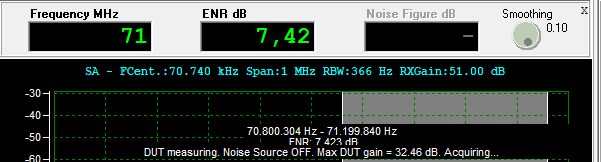
- Select the next marker and hold down the CTRL key, click on SYS CAL. Then continue with the remaining markers.
Miscellaneous, new configuration parameters
In Settings, Computations tab, you can specify these new parameters to refine the accuracy of the NF/G Analyzer measurements:
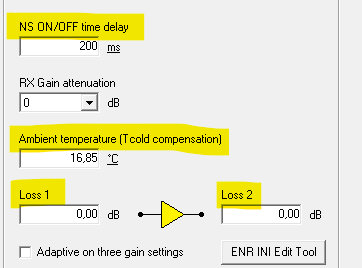
NS ON/OFF is a delay time that the system introduces after turning the Noise Source head on or off before continuing reading. It can be specified in milliseconds or in drop samples; click on the unit title to switch from one to the other.
Ambient temperature can be specified in degrees Celsius or Kelvin
The Loss 1 and Loss 2 fields allow you to specify the insertion loss of cables or connectors used to connect to the input and output of the DUTs, which are not covered by the calibration.
Average/Time and Cumulative Folding
Average/Time and Cumulative are folding methods that allow discrimination signals from background noise, especially used in radio astronomy.
Average/Time Folding
It is a filter that is selected from those available in the VFilter Type list, with the Folding item :
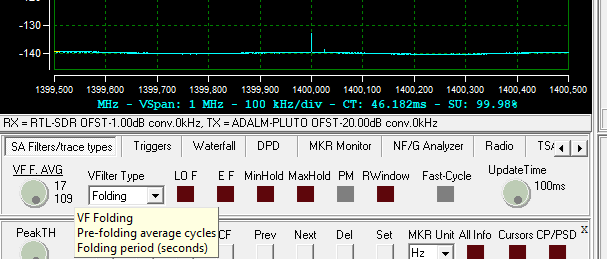
This filter works only with active Multithreading and with Span values lower than or equal to the maximum instantaneous bandwidth of the device, so, for example, in the case of an RTL-SDR, it is equivalent to 1 MHz, or for an ADALM-PLUTO rev B, it corresponds to 30 MHz. If one or more of the above conditions are not satisfied, then the filter will deactivate, and the VFilter Type message will flash red.
Description of operation: The data displayed on the spectrum are first processed by a classic average filter that averages them over several steps that the user can specify from 1 (disabled) to 30 using the VF F AVG knob. In the above example, the average filter is configured for 17 cycles. The data are then inserted into a shift register composed of many blocks that the user can specify with the same knob positioned on VF F Blocks :
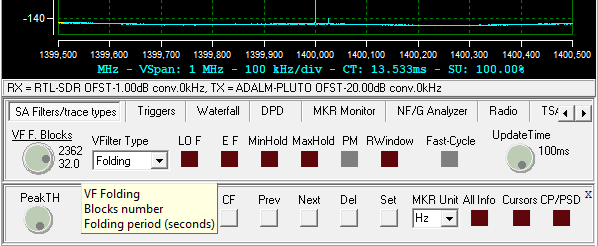
In the example, the filter shift register consists of 2362 blocks.
The data is then processed by the shift register and displayed. In the example, the shift register output will be the average of the last 2362 blocks over a period (Folding Period) determined by the size of the pre-filter average and the number of blocks in the register, which period is estimated in real time and displayed in seconds next to the knob, 32 seconds in our example.
Since the memory consumption of this filter can reach high values due to the amount of data present in the shift register corresponding to the spectrum data in the resolution determined by the FFT size multiplied by the number of blocks constituting the register, the system limits its size to approximately 1 GB of RAM maximum.
Cumulative Folding
Cumulative Folding is implemented in Satsagen starting from the raw data processed by the FFT in a separate flow, therefore independent from the VFilter filters and from what will be displayed on the main spectrum display. The Cumulative Folding results are displayed in an independent window in a dedicated display, where the amplitude is expressed in mW.
Cumulative Folding is started with the SA cumulative folding entry from the Run menu.
In essence, Cumulative Folding folds the spectrum back on itself by simply adding it algebraically, repeatedly, until the user stops it using the same Run -> SA cumulative folding menu item or when one of the following events occurs:
- Complete closure of the Satsagen program
- Changing the center frequency, span or resolution bandwidth of the Satsagen spectrum analyzer
While the action of turning the spectrum analyzer off and on again only implies a momentary interruption of the Cumulative Folding.
The exposure time accumulated by Folding is displayed in seconds in the title of the dedicated window display.
The same title displays the name of the backup file where the program automatically saves the results every 10 seconds or so.
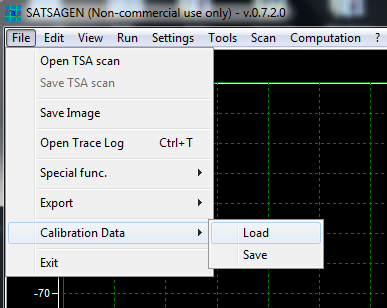
The files are saved in the documents\satsagen\export folder and can also be opened offline for viewing via the File menu and the Load Cumulative Folding Data item. From this view, it is also possible to export the data in CSV format via the File menu and the Save as CSV item.
If you accidentally restart Cumulative Folding, you can still restore the acquisition with the accumulated and saved data using the following procedure:
- Start a new acquisition
- From the File menu, choose Load cumulative folding data and open the interrupted recording file from the documents\satsagen\export directory.
- From the File menu of the same upload window, select the Merge item and confirm your wish to merge the data from the file just uploaded into the current acquisition session.
Improvements and additions
Configuration profiles
From this version, in addition to the main shortcut icon, the setup creates three additional shortcuts to the Satsagen program with three distinct configuration profiles: SATSAGEN Config #1, #2, and #3.
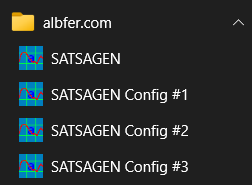
The three additional configurations are completely separate, it is possible in this way to start a total of four instances of Satsagen (not necessarily at the same time) with four distinct configurations, to be possibly dedicated to the use of the NF/G Analyzer, or the VNA, or the power meter and so on, without necessarily having to modify the configuration to adapt it to the devices and functions that are needed from time to time.

Filter Smoothing in seconds per dB
A Smoothing filter type has been added, selectable from the VFilter Type list as Smooth S/dB.
In the traditional Smoothing filter, the display of the received signals is “smoothed” by adding a fraction of dBm set by the user at each pass, until the real power is reached.
In this filter, the full power display of signals is achieved in terms of seconds per dB that can be set by the user, from a minimum of 0.01 seconds per dB to a maximum of 600 seconds per dB.
Assuming a CW signal at -90 dBm, a noise floor of about -100 dBm, and a Smooth S/dB setting of 1 second/dB, the above signal will appear to grow progressively to -90 dBm in about 10 seconds.
In this way it is possible to discriminate signals that have a defined continuity over time.
DC Bias on RX Connector
Some SDR devices (such as the RTL-SDR, AirSpy, HackRF and others) can provide a DC voltage on the RX connector useful for possibly powering external antenna amplifiers.
By default, this option, if present on the device, is disabled.
From this version of Satsagen, it is possible to manually enable the DC Bias by going to the Settings->Device session settings menu and selecting Enable DC Bias Antenna.
If the receiving device does not provide this option, the menu item will be disabled.
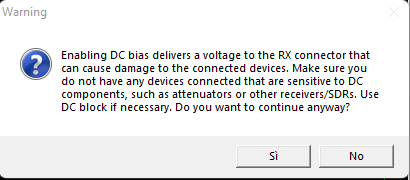
Since the DC voltage supplied by the SDR can damage any sensitive devices such as attenuators or other directly connected SDRs that have a DC coupling, the enabling will only be valid within the connection session to the device, so when the program is restarted, or at a Power Off/On cycle, the DC Bias will be disabled and will have to be manually turned on again if necessary via the aforementioned menu item.
Additional safety is provided by the confirmation message for enabling DC bias that will be displayed after selecting the Enable DC Bias Antenna item:
Generator, TX On button
In the Generator panel, I added a TX On button that can be used to turn the TX output off or on.
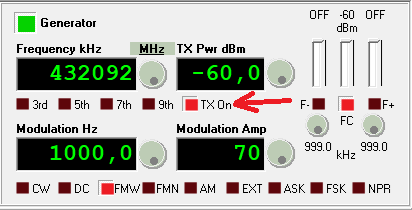
Compared to the button that starts the Generator, the TX On has an immediate response because it acts directly on the output stages, while the Generator start button determines and prepares the configuration of the SDR device based on the user settings and then starts the output stream, so, for example, the creation in memory of a 10 Hz modulation stream can require a waiting time that can even exceed a second, depending on the characteristics of the PC in use.
Pop-up menu for XO Correction control
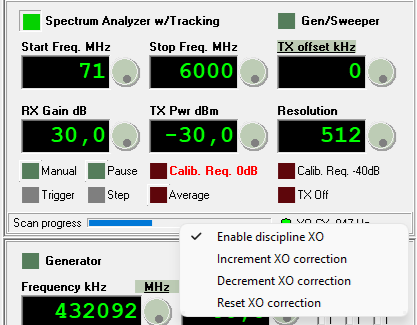
If Satsagen is configured in dual-device mode, where one device has an exclusive role of RX and the other of TX, it is possible to enable the Discipline XO item in the Device Options of the TX device box. This feature has been present for some time in the history of Satsagen versions and is a mechanism that automatically adjusts the correction on the reference clock of the TX device to keep it constantly aligned to the RX frequency during Spectrum Analyzer scans with tracking.
Since I have found that it can be impractical to enable or disable this XO discipline feature from Settings when necessary and thus block the scan in progress, I have added a context menu that allows this maneuver (and more) during scans by simply right-clicking in the status area of the Spectrum Analyzer with tracking panel and choosing the desired action:
Multithread Max instant bandwidth
With multithreading enabled, Satsagen runs a series of dedicated processes that take care of acquiring the data stream from the SDR device in real time.
This only happens if the Span set by the user falls within the maximum instantaneous bandwidth of the SDR device.
If the PC/USB or Ethernet/SDR system is not fast enough, overflows occur, which are counted and displayed under the spectrum display as OF.
In extreme situations, where the frequency of overflows is high, certain SDR devices may experience hangs or the acquisition threads may terminate unexpectedly, stopping the spectrum display.
To avoid the aforementioned crashes and unexpected closures, it is possible to set in the configuration the maximum instant bandwidth beyond which Satsagen turns off real-time acquisition by switching to a slower mode, which, however, no longer produces crashes and unexpected closures.
To set this threshold, go to Settings on the Extra tab:
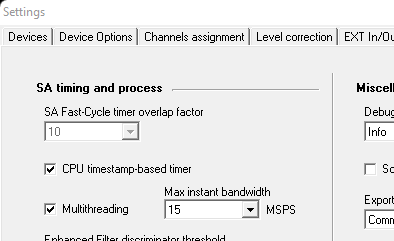
The Max instant bandwidth entry is set by default to the maximum speed of the device (Device MAX); it is therefore possible to position it from a minimum of 5 MSPS up to a maximum of 56 MSPS. The correct value must be found by carrying out tests, for example, starting from the lowest value and increasing it until the system “holds” without causing unexpected blocks or closures.